Best Settings for Smooth Gameplay on a Low-End PC in 2026
For smooth gameplay on a low-end PC in 2026, lower your resolution to 1080p or 900p, set textures to medium, turn shadows, anti-aliasing and post-processing to low or off, cap your frame rate near your monitor’s refresh rate, and close background apps before playing. These changes can lift a struggling PC from choppy 30 FPS to a stable 60 FPS.
You do not need a $2,000 gaming PC to enjoy your favorite games. Millions of players in the USA play on older laptops, budget desktops, and hand-me-down PCs with integrated graphics or an entry-level graphics card. The problem is not always the hardware. In many cases, the default settings are the problem: games ship with graphics options set far too high for a weak PC, Windows runs dozens of background tasks, and drivers go months without an update.
This guide shows you the best settings for smooth gameplay on a low-end PC in 2026, step by step. You will learn which graphics settings matter most, which ones you can turn off without hurting how the game looks, how to tune Windows for gaming, and how to test your changes so you know what actually helped. Everything here is free, safe, and reversible. If a setting does not help, you can change it back in seconds. For more PC gaming guides, performance tips, and budget setup advice, visit the PlayBattleSquare homepage and explore the latest articles for players on any budget.
What Counts as a Low-End PC in 2026?
A low-end PC in 2026 usually has one or more of these traits: an older quad-core processor, 8GB of RAM, integrated graphics or an entry-level graphics card with 2GB to 4GB of video memory, and a traditional hard drive instead of a fast SSD. If your PC struggles to hold 60 FPS at 1080p in games like Fortnite, Valorant, Apex Legends, or Call of Duty, it fits this guide, even if it was mid-range when you bought it.
The goal for a low-end PC is not ultra graphics or 240 FPS. The goal is stable, smooth gameplay: a steady frame rate, low input delay, and no sudden stutters when the action gets busy. A stable 60 FPS feels far better than a jumpy 90 FPS that drops to 30 during every fight. Once you accept that trade-off, every setting choice becomes easier, because you are choosing smoothness over eye candy.
Which Graphics Settings Matter Most for FPS?
Not all graphics settings are equal. Some cost a lot of performance for a tiny visual gain, while others barely affect FPS at all. On a low-end PC, change the expensive ones first and leave the cheap ones alone.
Resolution is the single biggest lever. Dropping from 1440p to 1080p can add 30 to 50 percent more FPS, and dropping to 900p or 720p can add even more if your PC is very weak. The image will look softer, but the game will feel far smoother, and in competitive games smoothness matters more than sharpness. Use your monitor’s native resolution if you can, but do not be afraid to go lower.
Shadows are the next biggest cost. Set shadows to low or off in almost every game. Shadows look nice in screenshots, but in a fast match you barely notice them, and they can cost 10 to 20 FPS on a weak graphics card. Anti-aliasing smooths jagged edges, but it is also expensive; use FXAA on low if you need it, or turn it off entirely at lower resolutions where the softness hides the edges anyway.
What Are the Best In-Game Settings for Popular Games?
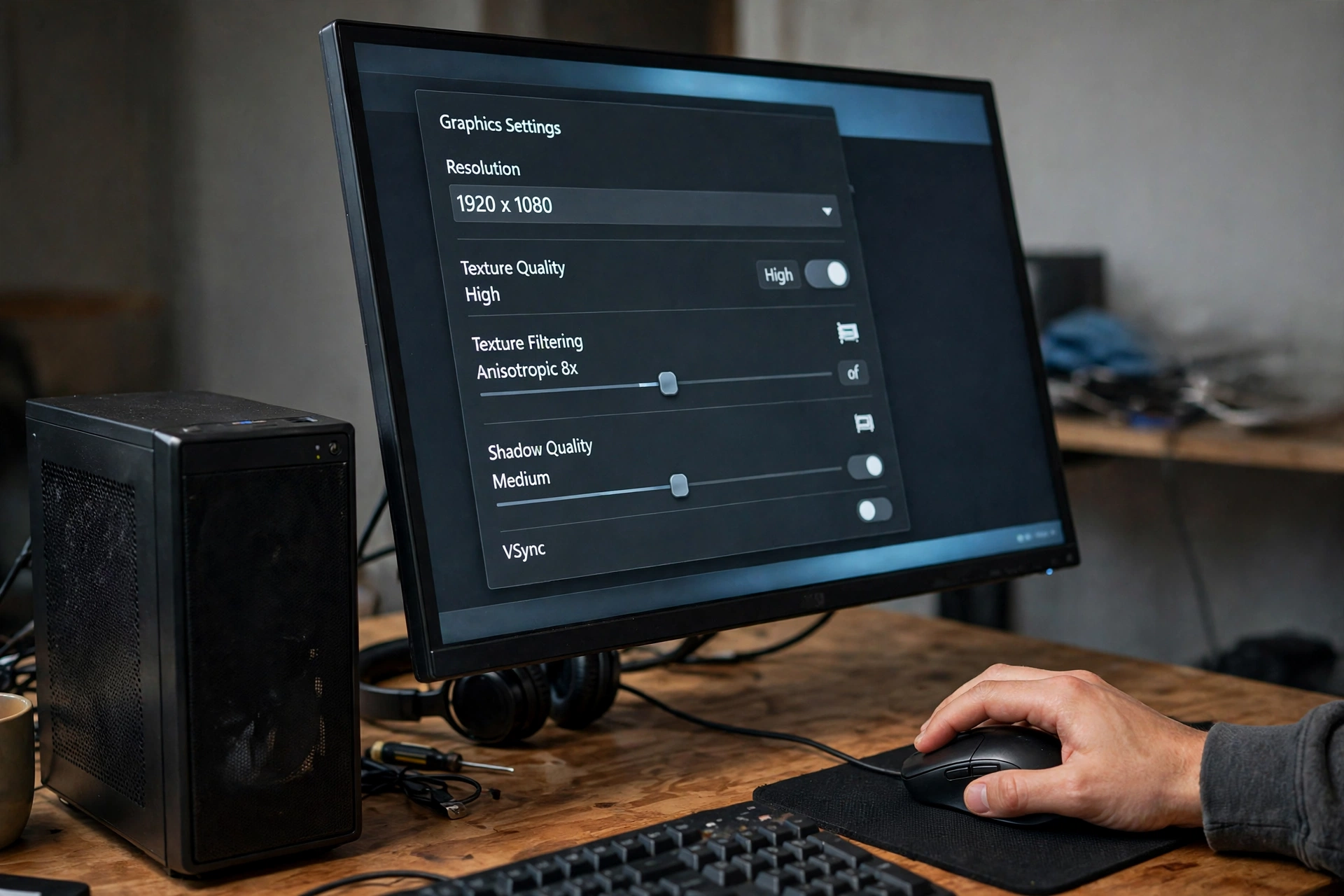
Most popular games share the same settings, so you can apply one template and adjust from there. Start with this baseline for Fortnite, Apex Legends, Valorant, Call of Duty, and similar titles: resolution 1080p or 900p, display mode fullscreen, textures medium, shadows low or off, anti-aliasing off or FXAA low, effects low, post-processing low, view distance medium, and VSync off.
Fullscreen mode matters because it gives the game full control of your display and usually delivers a few extra FPS over borderless windowed mode. VSync should stay off on a low-end PC unless you see terrible screen tearing, because VSync caps your frame rate and adds input delay. If tearing bothers you, cap your frame rate just below your monitor’s refresh rate instead, which gives you most of the benefit without the delay.
How Should I Set My Frame Rate and Refresh Rate?
Frames per second, often written as FPS, is the number of images your PC draws every second, and it is the clearest measure of smooth gameplay. A higher frame rate looks smoother, but only if it is stable. A PC that jumps between 40 and 90 FPS feels worse than a PC locked at a steady 60 FPS, because your eyes and your mouse hand have to keep adjusting to the changing speed.
Set a frame rate cap in your game or driver software. If your monitor is 60Hz, cap at 60 FPS. If it is 75Hz, cap at 75 FPS. If it is 144Hz but your PC cannot hold 144 FPS, cap at 60 or 75 FPS and enjoy the stability. Capping also reduces heat and fan noise, because your PC stops working harder than it needs to.
What Windows Settings Help Low-End Gaming Performance?
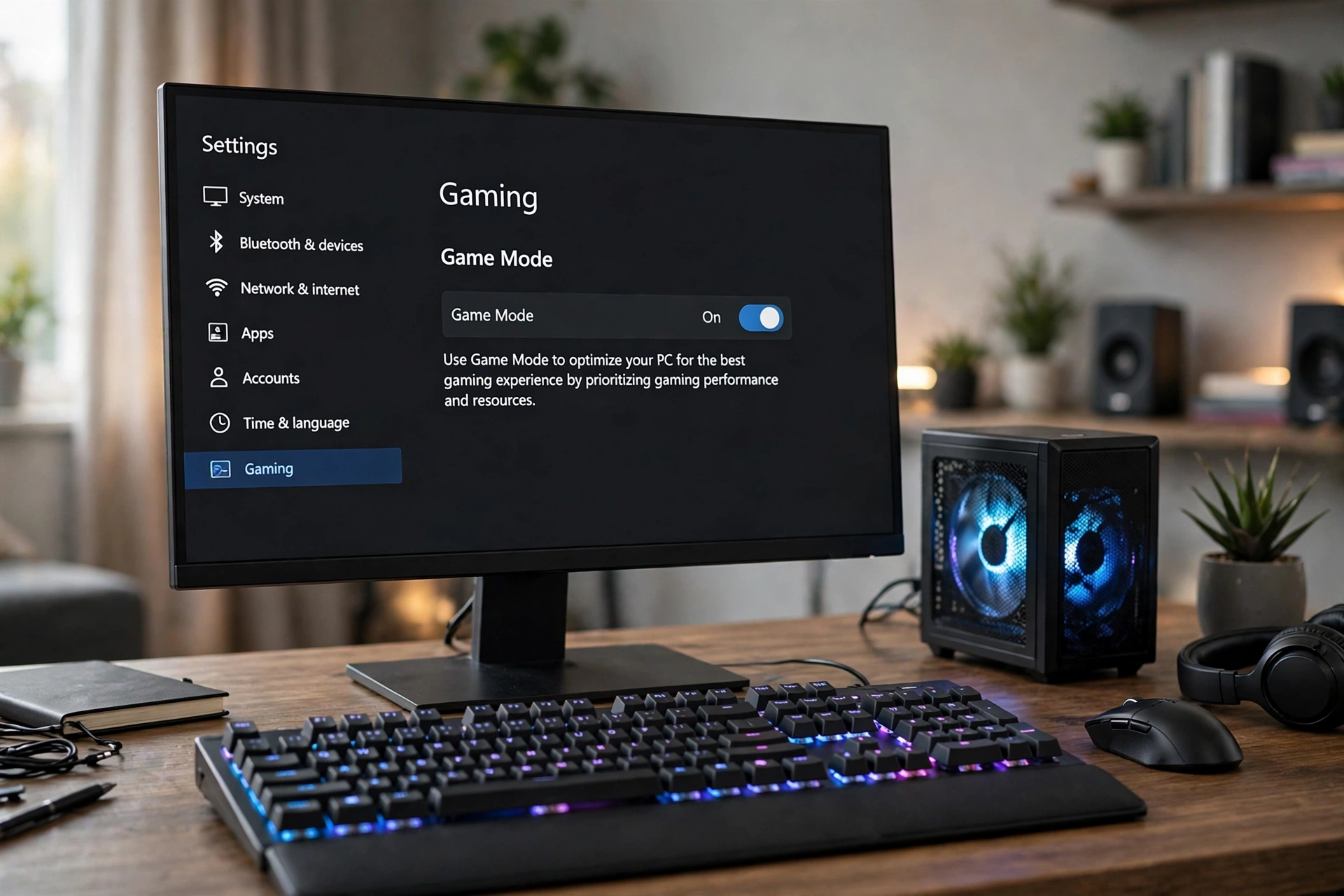
Windows has several settings that help gaming, and most of them take only a minute to change. First, turn on Game Mode in Windows Settings under Gaming. Game Mode tells Windows to prioritize your game over background tasks, which helps most on PCs with limited CPU power. Next, set your power plan to High Performance on a desktop, or Best Performance on a laptop while it is plugged in. The balanced plan saves power by slowing your processor, which is the opposite of what you want in a game.
How Do I Reduce Input Lag and Stutter?
Input lag is the delay between moving your mouse and seeing the result on screen, and it makes a game feel sluggish even when the frame rate looks fine. The biggest causes on a low-end PC are VSync, high render latency, and background software. Turn VSync off, cap your frame rate as described above, and set your game to use the lowest latency mode your graphics driver offers, such as NVIDIA Reflex Low Latency or AMD Anti-Lag, if your hardware supports it.
Stuttering has several causes, and each one needs a different fix. The most common cause is the graphics card running out of video memory, so lowering texture quality and resolution helps most. The second cause is slow storage: if your game is on an old hard drive, moving it to an SSD, even a small cheap one, often removes loading hitches completely. Heat is another hidden cause: laptops and small desktops collect dust, and when parts get too hot they slow down. Cleaning dust from fans and vents can bring back lost performance for free.
When Is It Time to Upgrade Instead of Tweaking Settings?
Settings can only take you so far. If you have applied every tip in this guide and your favorite game still runs below 45 FPS at 720p with everything on low, your hardware is the limit. That is the point to plan an upgrade, starting with the part that is holding you back most.
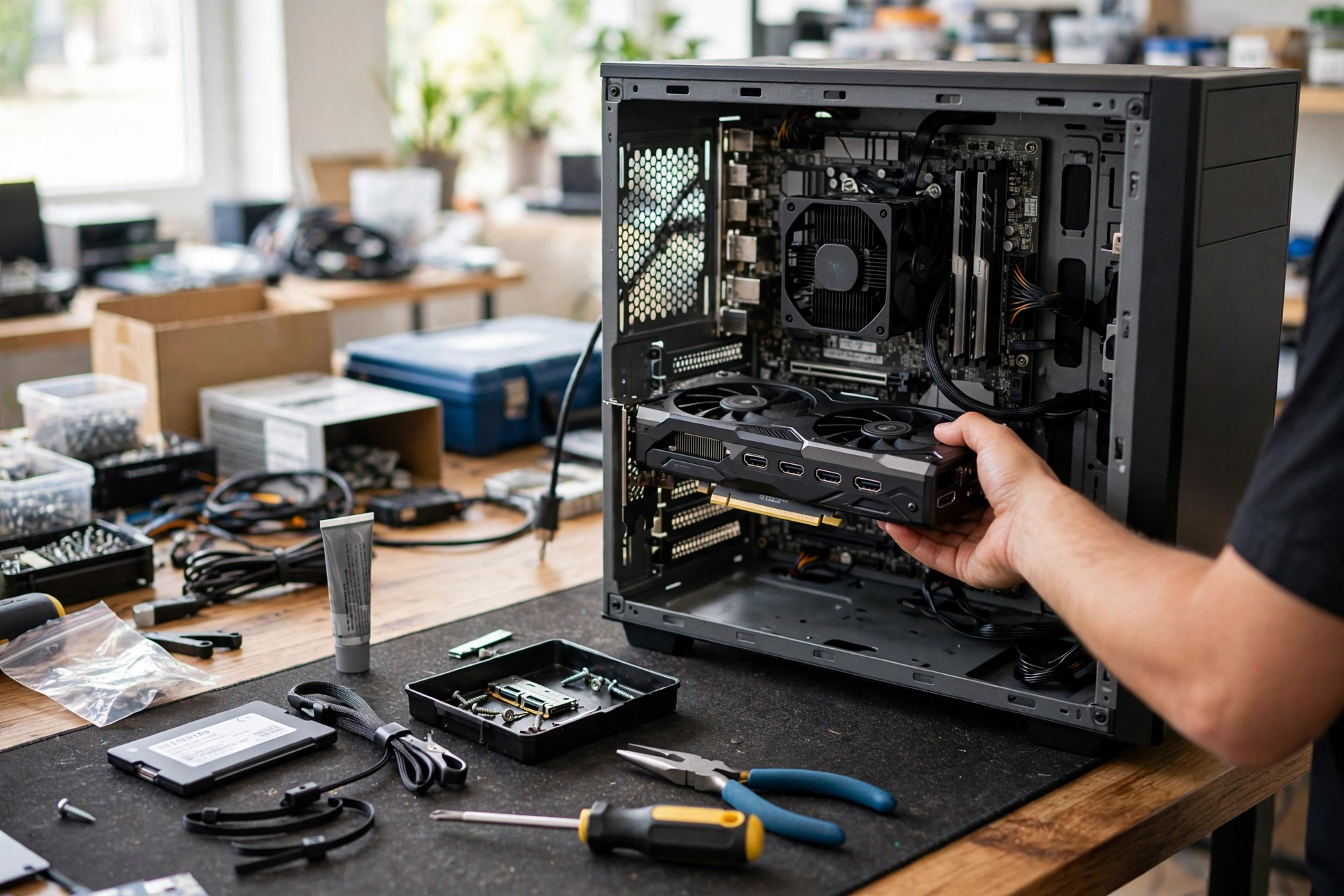
For most low-end PCs, the best first upgrade is a graphics card. A used or budget card with 6GB to 8GB of video memory can transform a PC that was struggling at low settings into one that plays at medium or high settings at 1080p. Check that your power supply can handle the new card and that it fits in your case before you buy. The second-best upgrade is RAM to 16GB, followed by an SSD if you still use a hard drive.
Buy upgrades in the USA from trusted retailers with return policies, and compare prices before you buy, because graphics card prices change often. Avoid the cheapest no-name power supplies, because a bad power supply can damage your whole PC. A modest, well-chosen upgrade beats a flashy one that does not fit your system.
Frequently Asked Questions
What are the best settings for smooth gameplay on a low-end PC?
The best settings for smooth gameplay on a low-end PC are 1080p or 900p resolution, medium textures, low or off shadows, off anti-aliasing, low post-processing, fullscreen mode, and VSync off. Cap your frame rate to match your monitor, close background apps, and update your graphics drivers for the biggest free performance gains.
How can I increase FPS on a low-end PC without upgrading hardware?
You can increase FPS without upgrading by lowering resolution and shadows, turning off anti-aliasing and post-processing, switching to fullscreen mode, closing your browser and background apps, turning on Windows Game Mode, and moving the game to an SSD if you have one. Cleaning dust and updating drivers can also recover lost FPS for free.
Is 60 FPS enough for smooth gameplay on a low-end PC?
Yes, 60 FPS is enough for smooth gameplay on a low-end PC, because a stable 60 FPS feels far better than an unstable higher frame rate that drops during fights. Cap your frame rate at 60 FPS on a 60Hz monitor, focus on stable frame times, and prioritize low input lag over chasing a higher number your PC cannot hold.
Should I use VSync on a low-end PC?
You should usually turn VSync off on a low-end PC, because VSync caps your frame rate and adds input delay that makes aiming feel sluggish. If screen tearing bothers you, cap your frame rate just below your monitor’s refresh rate or use FreeSync or G-Sync instead, which smooth the image without the same delay.
Does more RAM help gaming performance on a low-end PC?
Yes, more RAM helps gaming performance when you have only 8GB or less, because 16GB lets Windows and your game run without swapping to slow storage, which causes stutter. Upgrading from 8GB to 16GB is one of the cheapest and most effective upgrades for a low-end PC in 2026, especially if you keep apps open while playing.